Audio Annotation
Audio annotation allows annotators to segment audio files and assign labels to time regions. This is useful for speech transcription, speaker diarization, music analysis, and audio event detection.
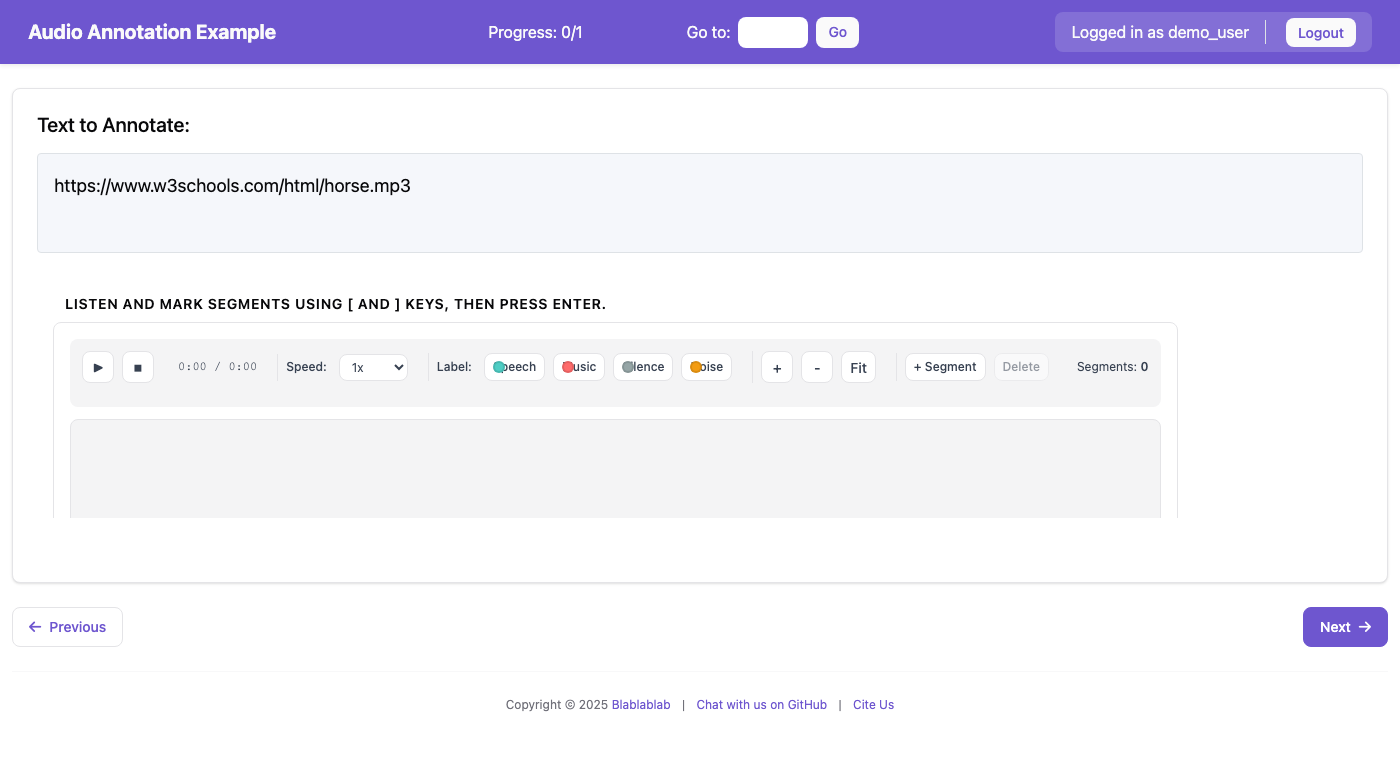 The audio annotation interface with waveform visualization, segment labels, and playback controls
Features
- Waveform Visualization: See audio amplitude to identify content vs silence
- Segment Creation: Create time-based segments by selecting regions
- Label Assignment: Assign category labels to each segment
- Playback Controls: Play, pause, stop, and variable speed playback
- Zoom & Scroll: Navigate long audio files (supports hour-long recordings)
- Keyboard Shortcuts: Fast annotation with customizable hotkeys
- Pre-computed Waveforms: Server-side caching for fast loading
Requirements
Server-Side (Recommended)
For optimal performance with long audio files, install the BBC's audiowaveform tool:
# macOS
brew install audiowaveform

# Ubuntu/Debian
sudo apt-get install audiowaveform

# Build from source
# See: https://github.com/bbc/audiowaveform
If audiowaveform is not installed, client-side waveform generation will be used as a fallback (suitable for shorter files < 30 minutes).
Client-Side
The frontend uses Peaks.js (loaded from CDN) for waveform rendering.
Configuration
Basic Configuration (Label Mode)
annotation_schemes:
  - annotation_type: audio_annotation
    name: audio_segmentation
    description: "Segment the audio by content type"
    mode: label
    labels:
      - name: speech
        color: "#4ECDC4"
        key_value: "1"
      - name: music
        color: "#FF6B6B"
        key_value: "2"
      - name: silence
        color: "#95A5A6"
        key_value: "3"
    min_segments: 1
    zoom_enabled: true
    playback_rate_control: true
Configuration Options
| Option | Type | Default | Description |
|---|---|---|---|
name |
string | required | Unique identifier for the schema |
description |
string | required | Instructions shown to annotators |
mode |
string | "label" |
Annotation mode: "label", "questions", or "both" |
labels |
list | required* | Category labels for segments (*required for label/both modes) |
segment_schemes |
list | required* | Per-segment annotation schemes (*required for questions/both modes) |
min_segments |
integer | 0 |
Minimum required segments |
max_segments |
integer | null |
Maximum allowed segments |
zoom_enabled |
boolean | true |
Enable zoom controls |
playback_rate_control |
boolean | false |
Show playback speed selector |
Global Audio Configuration
Configure waveform caching in your YAML config:
audio_annotation:
  waveform_cache_dir: waveform_cache/    # Cache directory (default: task_dir/waveform_cache)
  waveform_look_ahead: 5                  # Pre-compute next N instances
  waveform_cache_max_size: 100            # Max cached waveform files
  client_fallback_max_duration: 1800      # Max seconds for client-side fallback (30 min)
Annotation Modes
Label Mode
Annotators create segments and assign labels (similar to span annotation for text):
mode: label
labels:
  - name: speech
    color: "#4ECDC4"
  - name: music
    color: "#FF6B6B"
Questions Mode
Each segment gets its own set of annotation questions:
mode: questions
segment_schemes:
  - annotation_type: radio
    name: speaker_type
    description: "Who is speaking?"
    labels: ["host", "guest", "unknown"]
  - annotation_type: multirate
    name: quality
    description: "Rate this segment"
    options: ["Clarity", "Relevance"]
    labels: ["1", "2", "3", "4", "5"]
Both Mode
Combines labels and per-segment questions:
mode: both
labels:
  - name: speech
  - name: music
segment_schemes:
  - annotation_type: radio
    name: speaker
    labels: ["host", "guest"]
Label Configuration
labels:
  - name: speech
    color: "#4ECDC4"      # Custom color (hex)
    key_value: "1"        # Keyboard shortcut
  - name: music
    color: "#FF6B6B"
    key_value: "2"
Data Format
Input Data
The audio URL should be provided in the data file field specified by text_key:
{"id": "audio_001", "audio_url": "https://example.com/podcast.mp3"}
{"id": "audio_002", "audio_url": "/static/audio/interview.wav"}
Configure in YAML:
item_properties:
  id_key: id
  text_key: audio_url
Supported formats: MP3, WAV, OGG, and other formats supported by the browser.
Output Data
Annotations are saved as JSON:
{
  "audio_segmentation": {
    "segments": [
      {
        "id": "segment_1",
        "start_time": 0.0,
        "end_time": 15.5,
        "label": "speech",
        "annotations": {}
      },
      {
        "id": "segment_2",
        "start_time": 15.5,
        "end_time": 45.2,
        "label": "music",
        "annotations": {
          "speaker_type": "host",
          "quality": {"Clarity": "4", "Relevance": "5"}
        }
      }
    ]
  }
}
Keyboard Shortcuts
| Key | Action |
|---|---|
Space |
Play/Pause |
← / → |
Seek 5 seconds backward/forward |
Shift+← / Shift+→ |
Seek 30 seconds |
[ |
Set segment start at current position |
] |
Set segment end at current position |
Enter |
Create segment from selection |
Delete |
Delete selected segment |
1-9 |
Select label by number |
+ / - |
Zoom in/out |
0 |
Fit waveform to view |
User Interface
Toolbar
- Playback Controls: Play/pause, stop, current time display
- Speed Control: Playback rate selector (0.5x to 2x)
- Label Selector: Color-coded buttons for each label
- Zoom Controls: Zoom in, zoom out, fit to view
- Segment Controls: Create segment, delete selected
- Segment Count: Shows current number of segments
Waveform Display
- Main Waveform: Zoomable view showing amplitude
- Overview: Mini-map showing full audio with current view highlighted
- Segments: Color-coded regions on the waveform
- Playhead: Current playback position indicator
Segment List
Shows all segments sorted by start time: - Color indicator matching the label - Label name and time range - Play button to hear the segment - Delete button to remove
Example Project
See examples/audio/audio-annotation/config.yaml for a complete working example.
Tips for Administrators
-
Install audiowaveform: For long audio files (podcasts, interviews), install the server-side tool for fast waveform loading.
-
Look-ahead Caching: Set
waveform_look_aheadto pre-compute waveforms for upcoming instances based on annotation order. -
Audio Hosting: Host audio files on a server accessible to annotators. Use absolute URLs or place files in the static folder.
-
Playback Rate: Enable
playback_rate_controlfor long audio to let annotators speed through sections. -
Label Colors: Choose distinct colors that are visible on the waveform (avoid grays that blend with the waveform).
-
Min Segments: Set
min_segments: 1to ensure annotators create at least one segment per audio file.
Troubleshooting
Waveform not loading
- Check browser console for errors
- Verify the audio URL is accessible
- For long files, ensure
audiowaveformis installed - Check that the cache directory is writable
Slow waveform loading
- Install
audiowaveformfor server-side generation - Increase
waveform_look_aheadfor pre-computation - Ensure audio files are reasonably sized
Audio not playing
- Check browser audio permissions
- Verify audio format is supported (MP3, WAV, OGG)
- Check for CORS issues if audio is hosted externally