Image Annotation
Image annotation allows annotators to mark regions on images using bounding boxes, polygons, freeform drawing, and landmark points. This is useful for object detection, segmentation, and keypoint annotation tasks.
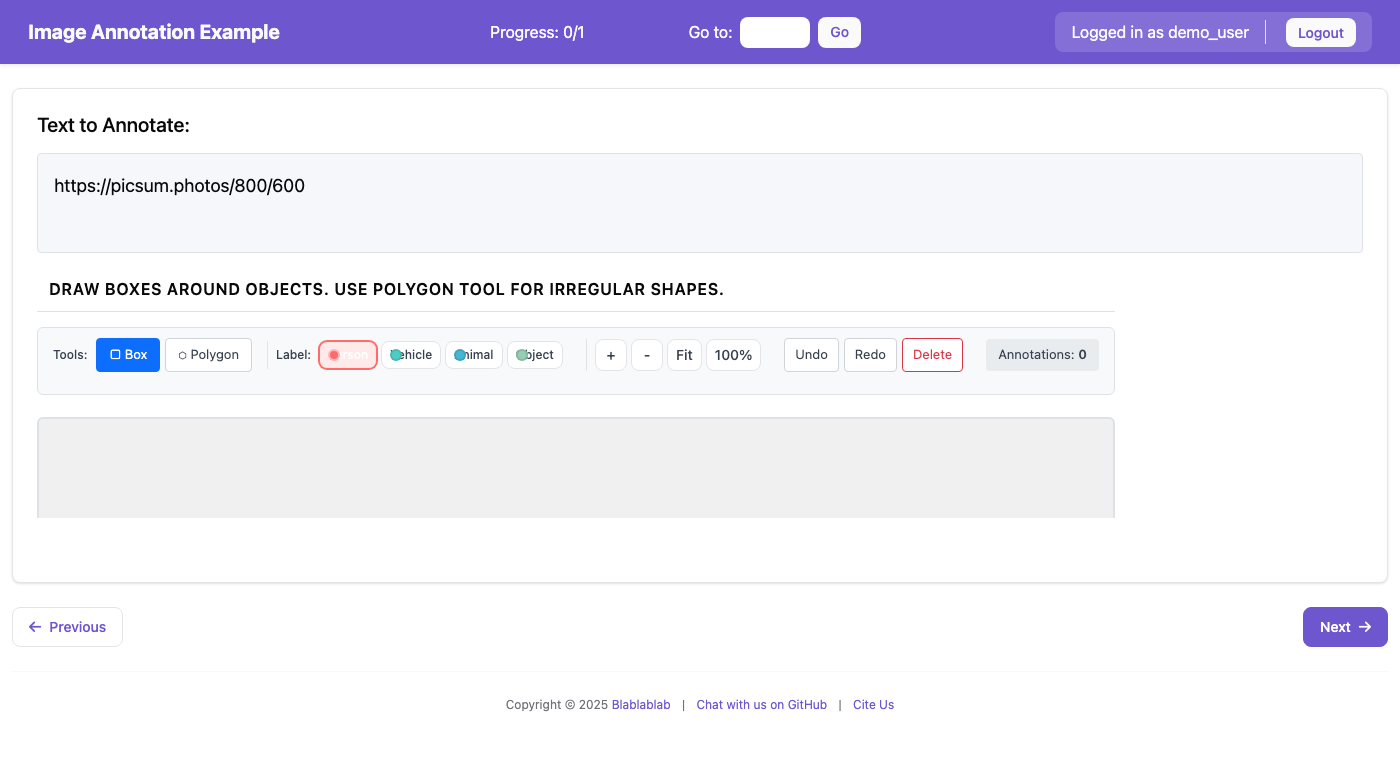 The image annotation interface with bounding box and polygon tools
Features
- Bounding Box (bbox): Draw rectangular boxes around objects
- Polygon: Draw multi-point polygons for precise object boundaries
- Freeform Drawing: Free-hand drawing for irregular shapes
- Landmark Points: Mark specific points of interest on images
- Segmentation Brush: Pixel-level mask painting for semantic segmentation
- Fill Tool: Flood-fill enclosed regions with a label
- Eraser: Remove mask regions
- Zoom & Pan: Navigate large images with ease
- Label Assignment: Assign category labels to each annotation
- Keyboard Shortcuts: Fast annotation with customizable hotkeys
Configuration
Basic Configuration
annotation_schemes:
  - annotation_type: image_annotation
    name: object_detection
    description: "Draw boxes around objects in the image"
    tools:
      - bbox
      - polygon
    labels:
      - name: person
        color: "#FF6B6B"
        key_value: "1"
      - name: vehicle
        color: "#4ECDC4"
        key_value: "2"
      - name: animal
        color: "#45B7D1"
        key_value: "3"
Configuration Options
| Option | Type | Default | Description |
|---|---|---|---|
name |
string | required | Unique identifier for the schema |
description |
string | required | Instructions shown to annotators |
tools |
list | required | Annotation tools to enable |
labels |
list | required | Category labels for annotations |
zoom_enabled |
boolean | true |
Enable zoom controls |
pan_enabled |
boolean | true |
Enable pan/drag navigation |
min_annotations |
integer | 0 |
Minimum required annotations |
max_annotations |
integer | null |
Maximum allowed annotations |
freeform_brush_size |
integer | 5 |
Default brush size for freeform tool |
freeform_simplify |
float | 2.0 |
Path simplification tolerance |
brush_size |
integer | 20 |
Default brush size for segmentation (1-100) |
eraser_size |
integer | 20 |
Default eraser size for segmentation (1-100) |
mask_opacity |
float | 0.5 |
Mask overlay opacity (0-1) |
Available Tools
| Tool | Key | Description |
|---|---|---|
bbox |
b |
Rectangular bounding boxes |
polygon |
p |
Multi-point polygons |
freeform |
f |
Free-hand drawing |
landmark |
l |
Single point markers |
brush |
m |
Segmentation brush for pixel-level masks |
eraser |
e |
Eraser for removing mask regions |
fill |
g |
Flood fill for enclosed regions |
Label Configuration
Labels can be specified as strings or objects:
# Simple string labels (auto-assigned colors)
labels:
  - person
  - car
  - tree

# Detailed label objects
labels:
  - name: person
    color: "#FF6B6B"      # Custom color (hex)
    key_value: "1"        # Keyboard shortcut
  - name: vehicle
    color: "#4ECDC4"
    key_value: "2"
Data Format
Input Data
The image URL should be provided in the data file field specified by text_key:
{"id": "img_001", "image_url": "https://example.com/image1.jpg"}
{"id": "img_002", "image_url": "/static/images/image2.png"}
Configure in YAML:
item_properties:
  id_key: id
  text_key: image_url
Output Data
Annotations are saved as JSON with the following structure:
{
  "object_detection": {
    "annotations": [
      {
        "id": "ann_1",
        "type": "bbox",
        "label": "person",
        "coordinates": {
          "left": 100,
          "top": 50,
          "width": 200,
          "height": 300
        }
      },
      {
        "id": "ann_2",
        "type": "polygon",
        "label": "vehicle",
        "points": [
          {"x": 10, "y": 20},
          {"x": 100, "y": 20},
          {"x": 100, "y": 100},
          {"x": 10, "y": 100}
        ]
      }
    ]
  }
}
Segmentation Masks
For pixel-level semantic segmentation tasks, use the brush, eraser, and fill tools. These create mask overlays that are stored as RLE (Run-Length Encoding) for efficiency.
Segmentation Configuration Example
annotation_schemes:
  - annotation_type: image_annotation
    name: segmentation
    description: "Paint regions using the brush tool"
    tools:
      - brush      # Pixel-level painting
      - eraser     # Remove mask regions
      - fill       # Fill enclosed areas
      - polygon    # Precise polygon boundaries
    labels:
      - name: foreground
        color: "#FF6B6B"
        key_value: "1"
      - name: background
        color: "#4ECDC4"
        key_value: "2"
    brush_size: 20        # Default brush size
    eraser_size: 20       # Default eraser size
    mask_opacity: 0.5     # Overlay transparency
Segmentation Output Format
Mask data is stored as RLE (Run-Length Encoding) for efficient storage:
{
  "segmentation": {
    "annotations": [...],
    "masks": {
      "foreground": {
        "rle": [0, 100, 50, 200, 25, ...],
        "width": 800,
        "height": 600,
        "color": "#FF6B6B"
      },
      "background": {
        "rle": [50, 150, 100, 300, ...],
        "width": 800,
        "height": 600,
        "color": "#4ECDC4"
      }
    }
  }
}
Segmentation Tips
- Brush Size: Use a larger brush (40-60) for filling large areas, smaller brush (5-15) for precise edges
- Eraser: Switch to eraser to fix mistakes without deleting the entire mask
- Fill Tool: Use after drawing a boundary with polygon or brush to quickly fill enclosed regions
- Layer Order: Masks are rendered in label order; later labels appear on top
Keyboard Shortcuts
| Key | Action |
|---|---|
b |
Select bounding box tool |
p |
Select polygon tool |
f |
Select freeform tool |
l |
Select landmark tool |
m |
Select segmentation brush tool |
e |
Select eraser tool |
g |
Select fill tool |
1-9 |
Select label by number |
Delete |
Delete selected annotation |
Ctrl+Z |
Undo |
Ctrl+Y |
Redo |
+ / - |
Zoom in/out |
0 |
Fit image to view |
Escape |
Cancel current drawing |
User Interface
Toolbar
The toolbar provides: - Tool Selection: Buttons to switch between annotation tools - Label Selection: Color-coded buttons for each label - Zoom Controls: Zoom in, zoom out, fit to view, reset - Edit Controls: Undo, redo, delete selected
Canvas
- Click and drag to create annotations
- Click existing annotations to select them
- Drag corners/edges to resize (bbox)
- Drag points to reshape (polygon)
- Use scroll wheel to zoom (when zoom enabled)
Annotation List
Shows all annotations with: - Color indicator matching the label - Label name and annotation type - Click to select, double-click to focus
Example Project
See examples/image/image-annotation/config.yaml for a complete working example.
Tips for Administrators
-
Image Hosting: Ensure images are accessible from the annotation server. Use absolute URLs or place images in the static folder.
-
Tool Selection: Only enable tools needed for your task to reduce annotator confusion.
-
Label Colors: Choose distinct, high-contrast colors for labels to improve visibility.
-
Zoom for Detail: Enable zoom for tasks requiring precise boundaries.
-
Min/Max Annotations: Set
min_annotationsto ensure annotators don't skip images. Setmax_annotationsto prevent over-annotation.