Video Annotation
This guide covers the video annotation schema in Potato, which allows annotators to mark temporal segments, classify frames, and annotate keyframes in video content.
New in v2.0: Video annotation with frame-level precision, timeline visualization, and keyboard-driven workflow.
Overview
The video_annotation schema provides comprehensive video annotation capabilities:
- Temporal Segment Marking: Mark start and end points to create labeled segments
- Frame-by-Frame Navigation: Step through video frame by frame for precise annotations
- Frame Classification: Classify individual frames with labels
- Keyframe Annotation: Mark important keyframes with notes
- Timeline Visualization: Visual representation of annotations using Peaks.js
- Keyboard Shortcuts: Efficient annotation workflow with keyboard controls
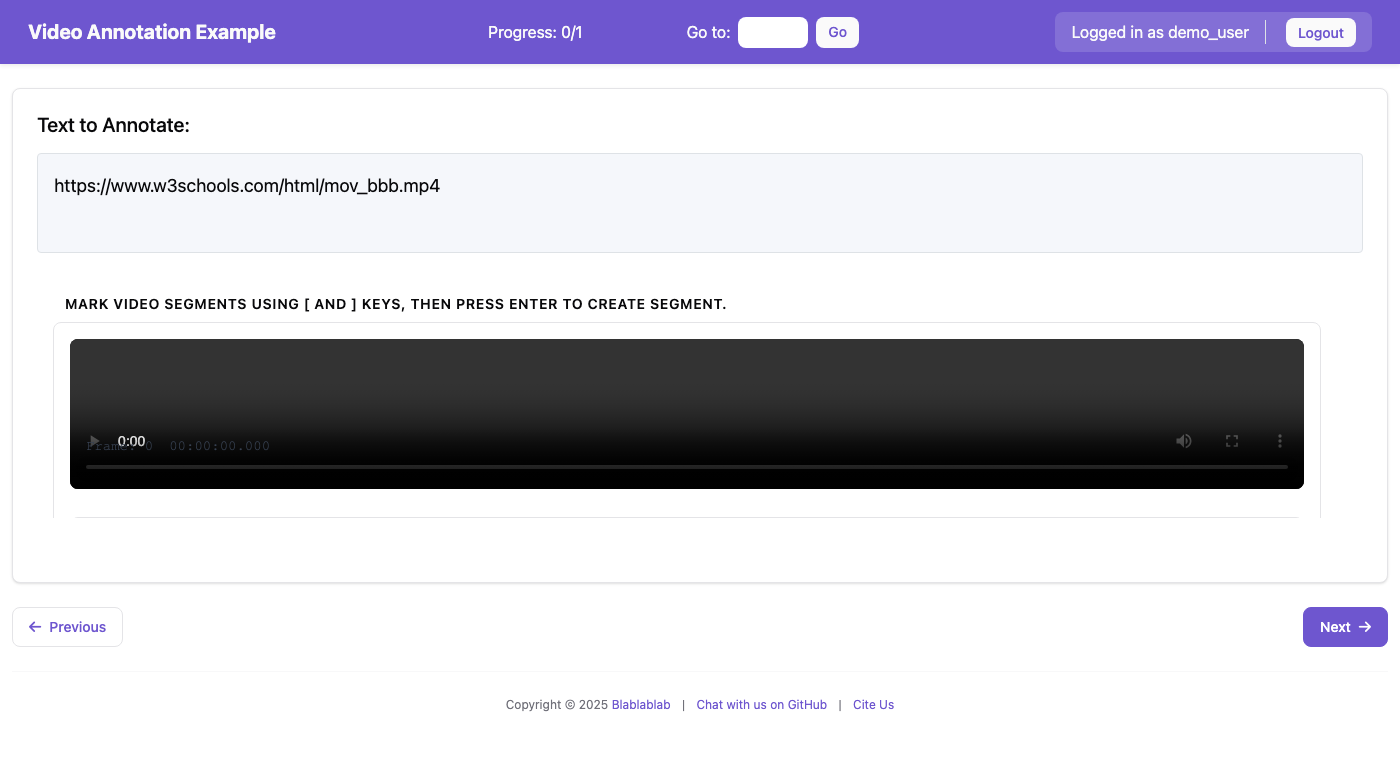 The video annotation interface showing the video player, toolbar, timeline, and annotation list
Quick Start
Example Configuration
annotation_schemes:
  - annotation_type: video_annotation
    name: video_segments
    description: "Watch the video and mark segments for different content types."
    mode: segment
    labels:
      - name: intro
        color: "#4ECDC4"
        key_value: "1"
      - name: main_content
        color: "#FF6B6B"
        key_value: "2"
      - name: outro
        color: "#95A5A6"
        key_value: "3"
    min_segments: 1
    timeline_height: 70
    playback_rate_control: true
    frame_stepping: true
    show_timecode: true
    video_fps: 30
Sample Data Format
[
    {
        "id": "video_001",
        "video_url": "https://example.com/video.mp4",
        "title": "Sample Video",
        "description": "A sample video for annotation"
    }
]
Running the Example
python potato/flask_server.py start examples/video/video-frame-annotation/config.yaml -p 8000
Then open http://localhost:8000 in your browser.
Configuration Options
Required Fields
| Field | Type | Description |
|---|---|---|
name |
string | Unique identifier for the annotation scheme |
description |
string | Description displayed to annotators |
labels |
array | List of labels for segments/frames/keyframes |
Optional Fields
| Field | Type | Default | Description |
|---|---|---|---|
mode |
string | "segment" |
Annotation mode (see Annotation Modes) |
min_segments |
integer | 0 |
Minimum required segments |
max_segments |
integer | null |
Maximum allowed segments (null = unlimited) |
timeline_height |
integer | 70 |
Height of timeline in pixels |
overview_height |
integer | 40 |
Height of overview bar in pixels |
zoom_enabled |
boolean | true |
Enable timeline zoom controls |
playback_rate_control |
boolean | true |
Show playback speed selector |
frame_stepping |
boolean | true |
Enable frame-by-frame navigation |
show_timecode |
boolean | true |
Display frame number and timecode |
video_fps |
number | 30 |
Video frames per second for frame calculations |
Label Configuration
Labels can be defined as simple strings or detailed objects:
# Simple labels (colors auto-assigned)
labels:
  - intro
  - content
  - outro

# Detailed labels
labels:
  - name: intro
    color: "#4ECDC4"
    key_value: "1"  # Keyboard shortcut
  - name: content
    color: "#FF6B6B"
    key_value: "2"
Annotation Modes
Segment Mode (segment)
The default mode for marking temporal segments in the video.
- Use
[to mark segment start - Use
]to mark segment end - Use
Enterto create the segment - Select a label before creating the segment
Frame Mode (frame)
For classifying individual frames.
- Use
,and.to step through frames - Use
Cor the "Classify Frame" button to classify the current frame - Select a label before classifying
Keyframe Mode (keyframe)
For marking important moments in the video.
- Use
Kto mark the current position as a keyframe - Keyframes can have labels and optional notes
Tracking Mode (tracking)
For object tracking across video frames with keyframe-based bounding box annotation.
Features: - Canvas overlay for drawing bounding boxes directly on the video - Track multiple objects across frames with color-coded labels - Automatic interpolation between keyframes - Keyframe-based workflow: annotate key positions and let the system interpolate
Tracking-Specific Options:
| Field | Type | Default | Description |
|---|---|---|---|
tracking_options.interpolation |
string | "linear" |
Interpolation method between keyframes |
tracking_options.auto_advance_frames |
integer | 5 |
Frames to auto-advance after placing keyframe |
Interpolation Methods:
- linear - Linear interpolation between keyframes (smooth movement)
- cubic - Cubic/smooth interpolation (natural motion curves)
- constant - Constant/hold interpolation (box stays in place until next keyframe)
Tracking Workflow:
1. Click + Track to create a new object track
2. Draw a bounding box on the video at the current frame
3. Advance to another frame using frame stepping (, and . keys)
4. Draw another bounding box for the same object
5. The system interpolates the box position between keyframes
Example Configuration:
annotation_schemes:
  - annotation_type: video_annotation
    name: object_tracking
    description: "Track objects across video frames"
    source_field: video_url
    mode: tracking
    labels:
      - name: person
        color: "#FF6B6B"
      - name: vehicle
        color: "#4ECDC4"
      - name: object
        color: "#45B7D1"
    tracking_options:
      interpolation: linear
      auto_advance_frames: 5
    video_fps: 30
    show_timecode: true
    frame_stepping: true
Tracking Keyboard Shortcuts:
| Key | Action |
|---|---|
T |
Create new track |
, |
Step back one frame |
. |
Step forward one frame |
Delete |
Delete selected keyframe |
Tracking Output Format:
{
    "tracks": {
        "track_1": {
            "id": "track_1",
            "label": "person",
            "color": "#FF6B6B",
            "interpolation": "linear",
            "startFrame": 0,
            "endFrame": 150,
            "keyframes": {
                "0": {
                    "frame": 0,
                    "time": 0.0,
                    "bbox": {"x": 100, "y": 50, "width": 80, "height": 160}
                },
                "30": {
                    "frame": 30,
                    "time": 1.0,
                    "bbox": {"x": 150, "y": 60, "width": 85, "height": 165}
                }
            }
        }
    }
}
Combined Mode (combined)
Enables all annotation types in one interface.
- Segment, frame, and keyframe controls all available
- Useful for comprehensive video analysis tasks
Keyboard Shortcuts
| Key | Action |
|---|---|
Space |
Play/Pause video |
Left/Right |
Seek 5 seconds backward/forward |
, |
Previous frame (when frame_stepping enabled) |
. |
Next frame (when frame_stepping enabled) |
[ |
Set segment start |
] |
Set segment end |
Enter |
Create segment |
K |
Mark keyframe (keyframe/combined mode) |
C |
Classify current frame (frame/combined mode) |
Delete |
Delete selected annotation |
+ |
Zoom in on timeline |
- |
Zoom out on timeline |
0 |
Fit timeline to view |
1-9 |
Select label (if key_value defined) |
Annotation Output Format
Annotations are saved in JSON format:
{
    "video_metadata": {
        "duration": 120.5,
        "fps": 30,
        "width": 1920,
        "height": 1080
    },
    "segments": [
        {
            "id": "segment_1",
            "start_time": 0.0,
            "end_time": 10.5,
            "start_frame": 0,
            "end_frame": 315,
            "label": "intro"
        },
        {
            "id": "segment_2",
            "start_time": 10.5,
            "end_time": 95.0,
            "start_frame": 315,
            "end_frame": 2850,
            "label": "main_content"
        }
    ],
    "frame_annotations": {
        "450": {
            "frame": 450,
            "time": 15.0,
            "label": "scene_change"
        }
    },
    "keyframes": [
        {
            "id": "kf_1",
            "frame": 900,
            "time": 30.0,
            "label": "important_moment",
            "note": "Key dialogue"
        }
    ],
    "tracking": {}
}
User Interface
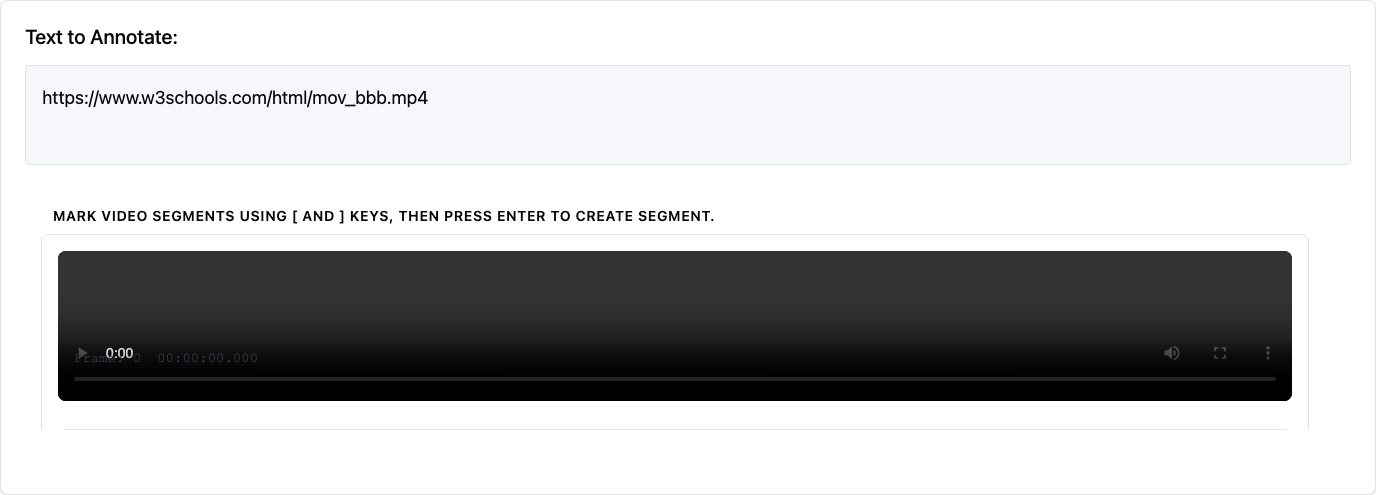 Close-up of the annotation controls and timeline
Video Preview Panel
The top section displays the video with:
- Standard video controls (provided by browser)
- Frame number and timecode overlay (when show_timecode: true)
- Tracking canvas overlay (when in tracking mode)
Toolbar
Below the video, the toolbar contains: - Playback controls: Play/Pause, Stop buttons - Frame stepping: Previous/Next frame buttons - Speed control: Dropdown to select playback rate (0.1x to 2x) - Label selector: Buttons to select the active label - Mode controls: Mark Keyframe, Classify Frame buttons (based on mode) - Zoom controls: Zoom In, Zoom Out, Fit buttons - Segment controls: Set Start, Set End, Create Segment, Delete buttons - Annotation count: Shows number of segments created
Timeline
The timeline uses Peaks.js to display: - Visual waveform of the video's audio track - Colored segments representing annotations - Current playback position - Selection markers for segment start/end
Annotation List
A scrollable list showing all annotations: - Color-coded by label - Shows time range for segments - Click to select/seek to annotation - Delete button on each annotation
Tips for Annotators
- Watch First: Watch the video through once before annotating to understand the content
- Use Keyboard Shortcuts: They're much faster than clicking buttons
- Select Label First: Always select your label before marking segment boundaries
- Use Frame Stepping: For precise boundaries, use
,and.to find exact frames - Slow Playback: Use 0.5x or 0.25x speed for detailed annotation
- Timeline Navigation: Click on the timeline to seek to specific positions
- Zoom In: Use zoom for precise segment boundaries on longer videos
Dependencies
The video annotation feature uses: - Peaks.js: For timeline visualization (loaded from CDN) - HTML5 Video: Standard browser video element
No additional server-side dependencies are required. The waveform for the timeline is generated from the video's audio track using the existing WaveformService (if audiowaveform is installed).
Troubleshooting
Video Not Loading
- Check that the video URL is accessible
- Ensure the video format is supported by the browser (MP4 with H.264 is most compatible)
- Check browser console for CORS errors if loading from external URLs
Timeline Not Showing
- The timeline requires the video to be fully loaded
- Waveform generation requires audiowaveform to be installed (falls back to basic timeline if not available)
Frame Numbers Incorrect
- Verify the
video_fpssetting matches your video's actual frame rate - Frame counts are estimates based on FPS and time position
Segments Not Saving
- Ensure you have at least
min_segmentssegments created - Check browser console for any JavaScript errors
- Verify the annotation scheme name matches expectations
Common Use Cases
1. Video Content Classification
Segment videos into content types (intro, main content, ads, credits):
annotation_schemes:
  - annotation_type: video_annotation
    name: content_segments
    mode: segment
    labels:
      - name: intro
        color: "#4ECDC4"
      - name: main_content
        color: "#FF6B6B"
      - name: advertisement
        color: "#FFD93D"
      - name: credits
        color: "#95A5A6"
    min_segments: 2
2. Action Recognition / Event Detection
Mark specific events or actions in sports, surveillance, or activity videos:
annotation_schemes:
  - annotation_type: video_annotation
    name: actions
    mode: keyframe
    labels:
      - name: goal_scored
        key_value: "g"
      - name: foul
        key_value: "f"
      - name: substitution
        key_value: "s"
    show_timecode: true
    frame_stepping: true
3. Scene Change Detection
Mark frame-level scene transitions:
annotation_schemes:
  - annotation_type: video_annotation
    name: scenes
    mode: frame
    labels:
      - name: scene_change
        color: "#FF6B6B"
      - name: fade_transition
        color: "#4ECDC4"
      - name: cut_transition
        color: "#45B7D1"
    frame_stepping: true
    video_fps: 24
4. Interview/Dialogue Annotation
Segment speaker turns in interviews or conversations:
annotation_schemes:
  - annotation_type: video_annotation
    name: speakers
    mode: segment
    labels:
      - name: speaker_a
        color: "#4ECDC4"
        key_value: "a"
      - name: speaker_b
        color: "#FF6B6B"
        key_value: "b"
      - name: both_speaking
        color: "#9B59B6"
        key_value: "c"
    playback_rate_control: true
5. Object Tracking
Track objects moving through a video:
annotation_schemes:
  - annotation_type: video_annotation
    name: object_tracking
    description: "Track objects across video frames"
    source_field: video_url
    mode: tracking
    labels:
      - name: person
        color: "#FF6B6B"
      - name: animal
        color: "#4ECDC4"
      - name: vehicle
        color: "#45B7D1"
      - name: object
        color: "#96CEB4"
    tracking_options:
      interpolation: linear
      auto_advance_frames: 5
    video_fps: 30
    show_timecode: true
    frame_stepping: true
Run the example:
python potato/flask_server.py start examples/video/video-tracking/config.yaml -p 8000
Comparison with Audio Annotation
| Feature | Video Annotation | Audio Annotation |
|---|---|---|
| Media Type | Video files (.mp4, .webm) | Audio files (.mp3, .wav) |
| Timeline | Peaks.js waveform | Peaks.js waveform |
| Frame Navigation | Yes (, and . keys) |
N/A |
| Timecode Display | Frame + time | Time only |
| Segment Marking | [ and ] keys |
[ and ] keys |
| Playback Control | 0.1x to 2x speed | 0.1x to 2x speed |
Both use Peaks.js for timeline visualization, so the annotation workflow is similar. Choose video annotation when you need: - Frame-level precision - Visual context for annotations - Scene/object-based labeling
API Endpoints
The video annotation schema uses these API endpoints:
| Endpoint | Method | Description |
|---|---|---|
/api/video/metadata |
POST | Get video metadata (duration, FPS, resolution) |
/api/video/waveform/generate |
POST | Generate waveform from video's audio track |
Browser Compatibility
Video annotation works best with modern browsers:
| Browser | Status | Notes |
|---|---|---|
| Chrome 80+ | ✓ Full support | Recommended |
| Firefox 75+ | ✓ Full support | |
| Safari 13+ | ✓ Full support | |
| Edge 80+ | ✓ Full support |
Video Format Support
For maximum compatibility, use: - Format: MP4 container - Video codec: H.264 - Audio codec: AAC
See Also
- Audio Annotation - Similar annotation for audio files
- Schemas and Templates - All annotation types
- Keyboard Shortcuts - Productivity features